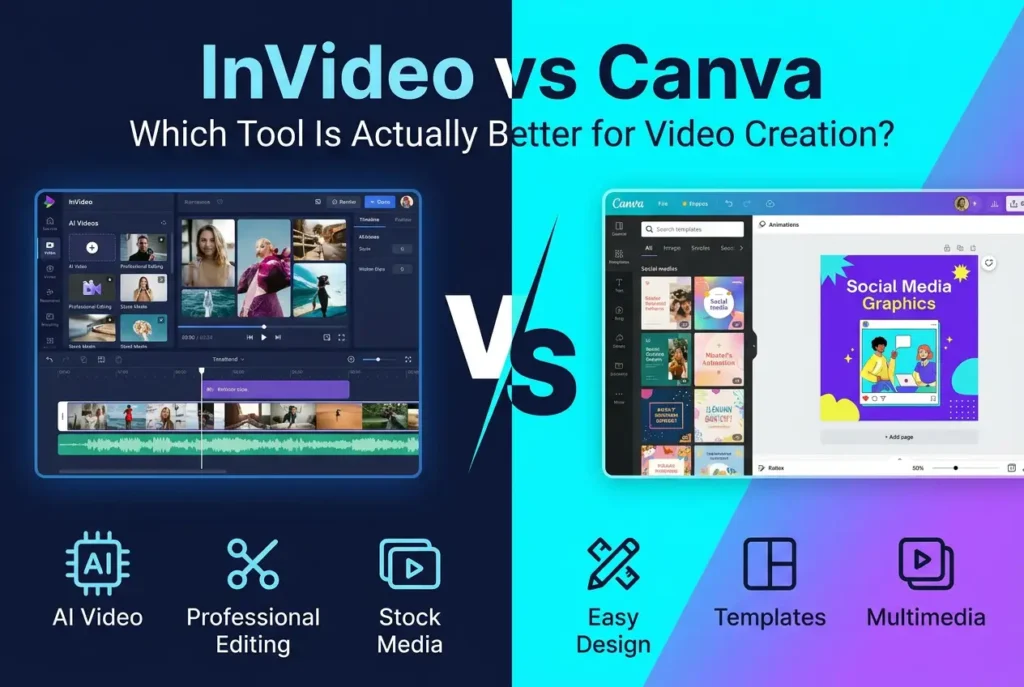
InVideo is better if your main goal is turning scripts, prompts, or product ideas into videos quickly. Canva is better if you need branded visuals, thumbnails, presentations, simple social videos, and template-based design work.
For most creators, marketers, and small teams, the right choice is not simply “InVideo vs Canva.” It depends on the workflow:
Choose InVideo if you want AI-assisted video generation, voiceovers, stock visuals, script-to-video workflows, faceless YouTube videos, explainers, or fast social video drafts.
Choose Canva if you want brand kits, visual templates, thumbnails, slides, simple animated videos, client graphics, and easy design collaboration.
Nach reviewing real user workflows, tool comparisons, complaints, and production outcomes, my conclusion is clear: InVideo is a faster video-first tool, while Canva is a stronger all-purpose design platform with basic video capabilities.
InVideo vs Canva: Quick Comparison
| Kategorie | InVideo | Canva |
|---|---|---|
| Am besten geeignet für | AI video generation, script-to-video, explainers, faceless videos | Graphic design, templates, brand assets, simple videos |
| Größte Stärke | Turns text or scripts into video drafts quickly | Makes branded visuals and simple video assets easy |
| Best users | YouTubers, marketers, founders, content teams | Designers, social media managers, educators, freelancers |
| Video editing depth | Better for AI-assisted video creation | Better for simple template-based editing |
| Design tools | Limited compared with Canva | Much stronger |
| Lernkurve | Easy for AI video workflows | Very easy for design and templates |
| Weakness | Quality can vary; AI output may need editing | Video editor can feel limited for complex editing |
| Optimale Anwendungsfälle | “I have a script and need a video quickly” | “I need polished branded visuals and simple video content” |
InVideo vs Canva: The Main Difference
The biggest difference between InVideo and Canva is this:
InVideo starts from the video idea or script. Canva starts from the visual design.
That difference matters more than pricing, templates, or AI features.
When I looked at real workflows, InVideo was usually used when someone already had a script, product message, YouTube idea, explainer concept, or marketing angle and wanted to turn it into a video faster. The workflow often looked like this:
- Write or paste a script.
- Let the tool generate voiceover, visuals, and structure.
- Review the video.
- Replace weak scenes, adjust pacing, add brand assets, and export.
Canva’s workflow was different. It was usually used when the creator needed branded assets first: thumbnails, slides, social posts, Instagram videos, simple product promos, or animated graphics. The workflow often looked like this:
- Choose a visual template.
- Add brand colors, fonts, images, and logos.
- Create a static or lightly animated design.
- Export it as a graphic, presentation, or short video.
That is why comparing InVideo and Canva only as “video editors” misses the real point. InVideo is a video creation tool. Canva is a visual content platform that also includes video editing.
| Vergleichsfaktor | InVideo | Canva | Die beste Wahl |
|---|---|---|---|
| Primary purpose | AI-assisted video creation | Visual design and simple video creation | Depends on workflow |
| Am besten geeignet für | Script-to-video, AI voiceovers, explainers, faceless videos | Thumbnails, social graphics, brand templates, presentations | InVideo for video generation; Canva for design |
| Starting point | Script, prompt, or video idea | Template, layout, or visual design | InVideo for text-first workflows |
| Video editing style | AI-generated draft with manual edits | Drag-and-drop template editing | InVideo for speed; Canva for control over visuals |
| Design capability | Basic compared with Canva | Very strong | Canva |
| AI video capability | Stronger for full video generation | Useful but more design-oriented | InVideo |
| Branding tools | Limited compared with Canva | Strong brand kits, templates, fonts, colors | Canva |
| Best user type | YouTubers, marketers, founders, content creators | Designers, freelancers, educators, social media teams | Depends on role |
| Größte Schwäche | Output quality can vary | Video editor can be limited or unstable for complex workflows | Depends on use case |
| Abschließende Empfehlung | Best for fast AI video drafts | Best for branded visual content | Use both for best workflow |
When InVideo Is Better Than Canva
InVideo is better than Canva when speed, AI video generation, and script-based production matter more than visual design control.
The strongest use cases I found were:
- Inhalte vom Skript zum Video
- Erklärvideos
- Produktvorstellungen
- Faceless YouTube videos
- Short-form social videos
- AI voiceover videos
- Marketing videos created from prompts
- Fast first drafts for content teams
One practical example came from a founder-style workflow: a website owner used InVideo AI to turn scripts into website videos. The user created two videos, spent about $25, and still had $25 of a $50 credit balance left. The workflow was not perfect, but it showed the main appeal of InVideo: you can move from script to usable video draft without building everything manually.
The process looked like this:
Before InVideo:
The creator had to manually create or assemble website videos, source clips, plan the structure, and handle more of the editing process by hand.
After InVideo:
The creator gave InVideo AI a script, reviewed the draft, asked the AI to make changes, and then added assets like logos and website screenshots.
The important lesson is that InVideo saves the most time at the beginning of the video process. It helps you avoid staring at a blank timeline. But it still needs review. In that same workflow, one video came out well, while another did not follow the script closely until support helped resolve the issue.
So InVideo is not a “one-click perfect video” tool. It is better understood as a fast AI video drafting system.
When Canva Is Better Than InVideo
Canva is better than InVideo when the final asset needs to look visually polished, branded, and consistent across many formats.
Canva is especially strong for:
- YouTube thumbnails
- Instagram posts
- TikTok covers
- Presentation videos
- Brand templates
- Client graphics
- Simple animated posts
- Social media ads
- Educational slides
- Product mockups
- Lightweight motion graphics
One real workflow showed that Canva can be commercially useful even when it is not a professional video editor. A freelancer used Canva to create basic corporate videos and simple motion graphics-style content for clients and earned around $1,200 from those projects.
That case is important because it shows Canva’s actual market fit. The client did not need advanced cinematic editing. The client needed clean, affordable, good-looking business videos. Canva was enough because the job required speed, templates, brand consistency, and acceptable motion design rather than advanced post-production.
Before Canva:
The freelancer may have needed more advanced tools like After Effects or a traditional motion graphics workflow.
After Canva:
The freelancer used Canva templates, animations, GIFs, and visual layouts to create low-to-mid complexity videos quickly enough to sell as client work.
Die Erkenntnis ist einfach: Canva wins when the customer values speed, clarity, and design polish more than advanced editing depth.
| Anwendungsfall | Besseres Werkzeug | Grund |
|---|---|---|
| Inhalte vom Skript zum Video | InVideo | It can generate a video draft from written input |
| AI voiceover videos | InVideo | It supports fast narration-based video workflows |
| Faceless YouTube videos | InVideo | It can combine voiceover, stock visuals, and scene structure |
| Produktbeschreibungen | InVideo | Useful for turning product messaging into video drafts |
| Website videos | InVideo | Can reduce the effort needed to create first-draft business videos |
| YouTube thumbnails | Canva | Stronger design templates and visual customization |
| Brand kits | Canva | Better support for fonts, colors, logos, and reusable assets |
| Social media graphics | Canva | Faster for branded posts, stories, carousels, and covers |
| Presentation videos | Canva | Stronger slide and layout tools |
| Client design deliverables | Canva | More versatile for freelancers and agencies |
| Complex editing | Neither | Use DaVinci Resolve, Premiere Pro, Final Cut Pro, or CapCut |
| Hybrid content workflow | Beide | InVideo creates the draft; Canva improves branding and visuals |
InVideo vs Canva for YouTube Videos
For YouTube, InVideo is usually better for generating video drafts, while Canva is better for supporting assets like thumbnails, intros, slides, and branded visuals.
A YouTube creator workflow showed InVideo being used for 2–5 minute videos with AI-generated voiceover and slideshow-style imagery. The creator used a $25/month plan and mainly relied on InVideo to turn text into narration and visuals.
That workflow looked like this:
Before InVideo:
The creator needed to write the script, record or generate voiceover separately, find images, arrange slides, and produce the video manually.
After InVideo:
The creator entered the text, let InVideo generate the voiceover and visual sequence, listened through the final output to check for narration errors, and then uploaded the video.
This is a strong use case for creators who produce informational, faceless, or commentary-style videos. InVideo reduces the production burden by automating several repetitive steps.
But for YouTube branding, Canva still plays a major role. Many YouTubers use Canva for thumbnails, channel graphics, title cards, end screens, and presentation-style visuals. Canva is not necessarily the best place to edit a complex YouTube essay, but it is very useful for the visual system around the channel.
Meine Empfehlung:
Use InVideo for:
AI video drafts, voiceover videos, faceless YouTube content, explainers, and script-based production.
Use Canva for:
Thumbnails, visual identity, simple intros, branded slides, and supporting graphics.
For serious YouTube editing, especially long-form videos with many cuts, sound design, B-roll timing, and pacing decisions, neither tool fully replaces a dedicated editor like DaVinci Resolve, Premiere Pro, Final Cut Pro, or CapCut.
InVideo vs Canva for Social Media Marketing
For social media marketing, Canva is better for brand consistency and campaign visuals, while InVideo is better for quickly generating video variations from scripts or prompts.
If your work involves Instagram posts, LinkedIn graphics, carousels, ad mockups, stories, covers, and basic animated videos, Canva is usually the better everyday tool. It lets teams keep colors, fonts, logos, layouts, and reusable templates consistent.
But if your social media strategy depends on producing many short videos from ideas, scripts, product benefits, or promotional angles, InVideo can be faster.
A common small-business workflow looks like this:
Canva workflow:
Create branded templates for social posts, product graphics, stories, short promo videos, and campaign assets.
InVideo workflow:
Turn product descriptions, hooks, scripts, and marketing angles into draft videos with voiceover and stock footage.
The pain point is that both tools can hit limits. In user testing and research, people complained about free version restrictions, watermarks, export quality, online-only workflows, and paid AI features. One practical frustration was that InVideo’s free exports could include branding or quality limits, while Canva’s AI and premium assets often pushed users toward paid plans.
So for social media marketing, the better choice depends on output type:
- For branded visuals and simple videos: Canva
- For script-based AI videos: InVideo
- For trend-driven TikTok/Reels editing: often CapCut
- For polished paid ads: possibly a more advanced editing stack
InVideo vs Canva for Business Videos
For business videos, Canva is better for polished internal and external brand materials, while InVideo is better for turning business messages into video drafts quickly.
InVideo is useful for:
- Produktbeschreibungen
- Website videos
- Startup demo videos
- Feature announcements
- Verkaufsvideos
- AI voiceover explainers
- Simple onboarding videos
Canva eignet sich für:
- Training slides
- Presentation videos
- Brand explainers
- Simple promotional clips
- Social proof graphics
- Case study visuals
- Client-facing template videos
The website video case is especially relevant here. A business user created two videos with InVideo AI and spent around $25. The output needed editing, prompting, and support, but it still reduced the barrier to producing video content for a website.
This reveals the real business value of InVideo: it helps non-video teams create a starting point. A founder, marketer, or solo operator can get something on screen without hiring a full video team for every small asset.
Canva’s business value is different. It helps teams keep everything on brand. If a company needs sales decks, onboarding slides, social posts, simple explainers, and client graphics, Canva becomes a central brand production system.
In short:
InVideo helps businesses produce video faster. Canva helps businesses look consistent.
InVideo vs Canva for AI Video Creation
InVideo is stronger than Canva for AI video creation when the goal is to generate a full video from text, prompts, or scripts.
Canva does have AI features, but its core identity is still design-first. Its AI tools are helpful for generating images, layouts, copy, and simple creative assets. However, when people ask for “text-to-video” or “prompt-to-video” workflows, InVideo is usually closer to what they expect.
That said, AI video quality remains a major concern. In research, some creators said common tools like InVideo and Canva did not yet produce the level of video quality they would confidently publish to an audience without additional editing.
This is a key point for SEO and buyer intent: people searching “InVideo vs Canva” often want to know which tool will automate video creation. The honest answer is:
InVideo automates more of the video creation process, but it does not remove the need for human review.
The best workflow is not:
“Prompt in, perfect video out.”
The better workflow is:
“Prompt in, draft out, human edits, publish.”
That is where InVideo is most useful. It compresses the first draft stage.
Canva Video Editor: Strengths and Limitations
Canva’s video editor is best for simple, template-based videos. It is not ideal for complex editing.
Its strengths are clear:
- Easy drag-and-drop interface
- Strong templates
- Brand kit support
- Good for non-designers
- Useful for basic animations
- Fast export for simple assets
- Excellent for visual consistency
But the biggest limitation is editing depth. In hands-on workflow research, Canva’s video editor was frequently described as fine for basic tasks but frustrating for complex ones.
The most serious complaints appeared after Canva’s newer video editor changes. Some workflows became significantly slower.
One user workflow showed a dramatic productivity drop:
Vorher:
A simple Canva video could usually be finished in about 20 minutes.
Danach:
The same type of work took 6 hours and still was not complete.
Another animation-focused workflow showed a similar problem:
Vorher:
A full animated video edit could be completed in 3–4 hours using Canva’s page-based system.
Danach:
The same 3–4 hours were spent just relearning the changed workflow, with the creator reporting lost time and money.
These cases matter because Canva’s main promise is ease. If an update makes a simple workflow slower, Canva loses its biggest advantage.
InVideo Limitations: Where It Falls Short
InVideo’s biggest limitation is output consistency.
It can produce useful drafts quickly, but the quality depends heavily on the prompt, script, stock footage selection, scene matching, and AI interpretation. Sometimes the first draft is close. Sometimes it needs major revision.
The website video case showed both sides clearly. One video came out well. Another did not follow the script properly until the creator contacted support. That is a realistic picture of AI video tools today: powerful, but not fully predictable.
Common InVideo limitations include:
- AI may misunderstand the script
- Stock visuals may feel generic
- Voiceover may need checking
- Scene pacing may require editing
- Export limits can matter on free plans
- Higher-quality results may require paid usage
- Brand-specific videos still need manual customization
For businesses and creators, the key is to treat InVideo as a production accelerator, not a replacement for creative judgment.
Canva Limitations: Where It Falls Short
Canva’s biggest limitation is that it can feel like a design tool trying to handle video, rather than a true video editor.
Several workflow issues appeared repeatedly:
- Timeline changes disrupted existing habits
- Copying pages or elements became less predictable
- Elements sometimes shifted position after copying
- Audio preview glitches made editing harder
- Older video projects could become harder to manage
- Complex animations were difficult to control
- Offline use was limited
- Some AI features were locked behind paid plans
One particularly important business case involved about 50 Canva video templates. The workflow depended on reliable audio timing. The user found that audio tracks glitched around the 10-second mark across templates. They tested the issue on two Canva accounts, on both Mac and Windows.
That case shows why reliability matters. When a team manages dozens of templates, even a small timing issue becomes a large operational problem. If the editor preview cannot be trusted, the user has to export videos just to verify whether the final output works.
For individual users, that is annoying. For a business workflow, it is a real productivity risk.
InVideo vs Canva Pricing: How to Think About Value
The better pricing choice depends on what you produce most often.
InVideo’s value is tied to video generation volume. If you regularly turn scripts into videos, AI voiceovers, explainers, or short-form content, then a paid InVideo plan can be justified by time saved.
The clearest example was the creator using a $25/month InVideo plan for 2–5 minute videos. For that workflow, the subscription made sense because the user was replacing manual voiceover and slideshow production.
Another example showed a user spending around $25 to create two website videos, with enough credit left to potentially make one or two more. That suggests InVideo can be cost-effective for occasional business videos if the output quality is good enough.
Canva’s value is broader. A Canva subscription is easier to justify if you need more than video:
- Social posts
- Presentations
- Brand kits
- Templates
- Miniaturansichten
- Documents
- Simple animations
- Team collaboration
- Marketing assets
The freelancer who earned around $1,200 from Canva-based video projects shows that Canva can have strong ROI when used for client deliverables. But that ROI came from matching the tool to the right job: simple, visually clean business videos, not advanced editing.
The pricing conclusion:
Pay for InVideo when video automation saves production time. Pay for Canva when design consistency and template output support many content formats.
InVideo vs Canva for Freelancers and Agencies
For freelancers and agencies, Canva is usually the more versatile daily tool, while InVideo can be a useful add-on for fast video drafts.
Canva can support many client deliverables:
- Social media kits
- Brand templates
- Pitch decks
- Anzeigen
- Miniaturansichten
- Reports
- Simple videos
- Animated explainers
- Client presentations
Die $1,200 Canva client video case is the strongest example. It proves that simple Canva videos can be monetized when the client needs affordable, fast, clean content.
InVideo can also support agency work, especially for:
- First-draft video concepts
- Script-to-video ads
- Produktbeschreibungen
- Startup videos
- AI voiceover content
- Faceless content packages
However, agencies should be careful about relying on raw AI output. InVideo drafts often need editing, brand correction, better visuals, and human judgment before client delivery.
The best agency workflow may be:
- Use Canva to create the brand system and visual assets.
- Use InVideo to generate a video draft from a script.
- Replace weak visuals with branded Canva assets.
- Finalize in a dedicated editor if needed.
This hybrid workflow is often stronger than choosing only one tool.
InVideo vs Canva for Beginners
Both InVideo and Canva are beginner-friendly, but they help beginners in different ways.
Canva is easier for complete beginners who need to create polished visuals quickly. The interface is intuitive, templates are abundant, and most people can create something usable without design experience.
InVideo is beginner-friendly for people who think in scripts. If you can describe the video you want, InVideo can help you get a draft faster than learning a full editing program.
The key question is:
Do you want to design a video manually, or generate a video from text?
Choose Canva if you want to start with templates and visuals.
Choose InVideo if you want to start with a script or prompt.
For absolute beginners making social content, I would recommend this:
- Start with Canva for brand visuals, thumbnails, and simple videos.
- Add InVideo when you need to produce videos from scripts faster.
- Move to CapCut, DaVinci Resolve, or Premiere when editing precision becomes important.
InVideo vs Canva: Best Workflow If You Use Both
The best workflow is not always choosing InVideo or Canva. For many creators and businesses, the strongest setup is using both.
A practical combined workflow:
- Plan the message
Write the video hook, script, product angle, or educational outline. - Generate the video draft in InVideo
Use InVideo to create the first version with voiceover, scenes, and pacing. - Create branded assets in Canva
Design title cards, lower thirds, thumbnails, charts, intro slides, and branded visuals. - Replace generic AI visuals
Use Canva assets to improve scenes that feel too stock or generic. - Review manually
Check voiceover accuracy, pacing, visuals, transitions, and brand consistency. - Finalize and repurpose
Export versions for YouTube, LinkedIn, Instagram, TikTok, website pages, or email campaigns.
This workflow solves the main weakness of each tool. InVideo gives speed. Canva gives polish.
InVideo vs Canva: Final Verdict
| Your Goal | Choose InVideo | Choose Canva | Warum |
|---|---|---|---|
| Turn a script into a video | Ja | No | InVideo is built around prompt-to-video and script-to-video workflows |
| Create YouTube thumbnails | No | Ja | Canva has stronger design templates and visual editing tools |
| Make faceless YouTube videos | Ja | Maybe | InVideo can generate voiceover and scenes from text |
| Create social media graphics | No | Ja | Canva is stronger for branded static and animated visuals |
| Build brand templates | No | Ja | Canva has brand kits and reusable design systems |
| Create simple business videos | Maybe | Ja | Canva works well for polished, template-based business videos |
| Generate explainer videos quickly | Ja | Maybe | InVideo is faster for script-based explainers |
| Edit complex videos | No | No | A dedicated editor is better for advanced timelines |
| Produce many content variations | Ja | Maybe | InVideo is useful for fast AI-generated drafts |
| Maintain visual consistency across assets | Maybe | Ja | Canva is stronger for brand consistency |
InVideo is the better choice for AI video creation, script-to-video workflows, voiceover videos, and fast video drafts.
Canva is the better choice for branded design, templates, thumbnails, presentations, social graphics, and simple videos.
My final recommendation:
Choose InVideo if your main bottleneck is creating videos from scripts.
It is especially useful for YouTubers, marketers, founders, and creators who need first drafts quickly.
Choose Canva if your main bottleneck is creating polished visual content consistently.
It is especially useful for social media managers, freelancers, educators, small businesses, and teams that need branded assets across many formats.
Use both if you want the strongest practical workflow.
InVideo can generate the video foundation. Canva can make it look branded, polished, and reusable.